
Your UI Changed. Here Is How to Fix the Demo Video Without Starting Over
How to update a product demo video after a UI change: find the stale scenes, fix the script, rebuild the screens and check it before you republish.
 Baltej Singh · Founder, DemoVexa 5 min read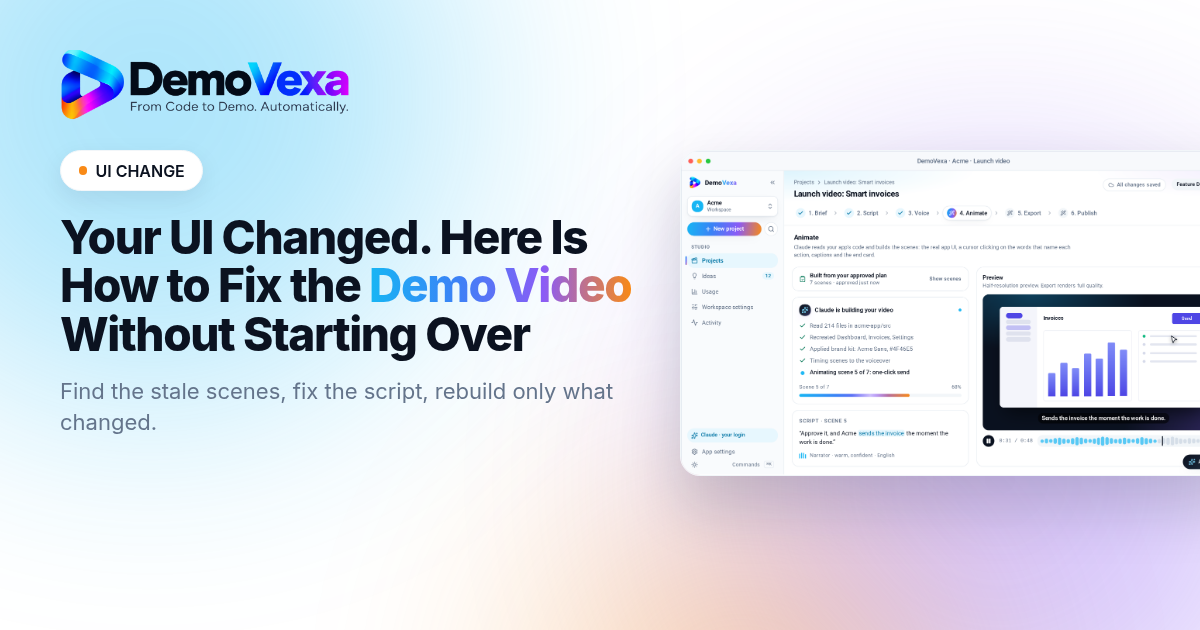
To update a product demo video after a UI change, start by listing what moved, then fix the script before you touch the visuals. Change only the scenes that show the old interface, keep the parts that still match, and check the result against the live product before you republish. If your video is built from code instead of a screen recording, most of the work is a rebuild, not a reshoot.
#Why does an outdated demo video cost you?
An outdated demo costs you trust at the exact moment someone is deciding whether to try your product. They watch a button in the top right, sign up, and find it in a sidebar. Now they wonder what else is out of date.
It also creates support work. People follow the video, get stuck, and write in. Your help docs say one thing, the video says another, and the product says a third.
The fix is not to stop making videos. It is to treat the video like the docs: something you update when the product changes.
[Image: side by side of an old settings screen in a demo video and the new settings screen in the live app]
#How do you know which scenes need updating?
Most UI changes touch fewer scenes than you think. A new navigation bar might affect every scene, but a renamed button might affect one.
#Write down what changed in the release
Start from your release notes or changelog. For each change, note the screen, the old label or position, and the new one. Be specific: "Export moved from the File menu to a button on the toolbar" is useful. "Improved the export flow" is not.
#Watch the video with the list open
Play the current video and pause at each scene. Mark it as one of three things:
- Still accurate: no change needed.
- Wrong words: the narration or on-screen text names something that changed.
- Wrong screen: the interface shown no longer matches the product.
#Check the small things
Renamed menu items, new icons, a changed colour on the main button and a moved logo are easy to miss. Viewers notice them, especially current customers.
[Image: a scene list with each scene marked accurate, wrong words or wrong screen]
#What should you change in the script first?
Fix the script before the visuals. Words are faster to change than pictures, and the script decides what each scene needs to show.
Go through every line marked "wrong words". Replace old names with the exact names now used in the product. If a step was removed, cut the line rather than explaining that it used to exist. If a new step was added, add one short line for it.
Then reread the whole script out loud. A change in one scene often breaks the flow into the next. If the video now runs longer, cut something rather than speeding up the voice.
If you have the video in more than one language, update the main script first, then each translation. Product and UI names should match what each viewer sees in the app.
#How do you rebuild the visuals without starting over?
This depends on how the video was made.
#If you recorded your screen
You need to record the changed scenes again. Use the same window size, zoom level, sample data and cursor speed as the original, or the new clips will look out of place next to the old ones. Keep a note of these settings for next time. Then edit the new clips in and re-time them to the voiceover.
#If the video was built from your code
This is where code-built video helps. DemoVexa reads your product's code and recreates the screens as animated components, so after a UI change you point it at the updated code and rebuild. The scenes show the new interface, with clean sample data, and you don't record anything. The features page explains how the build works.
Within DemoVexa the flow follows the same steps as the first video. Keep the Brief, update the Script, re-run Voice if the wording changed, then Animate and Export again. You can also ask for changes to a single scene in plain words, such as slowing it down or changing the ending.
Remotion, the open source library DemoVexa uses to animate scenes in React, has its own documentation if you want to see how code-based video works under the hood.
[Image: the Animate step rebuilding a scene with the new toolbar from updated code]
#Keep every format in step
If you published a wide 16:9 video plus 9:16 and 1:1 versions for social, update all of them. An old vertical clip on Instagram is still an old video. DemoVexa exports all three formats from the same build, so they change together.
#What should you check before republishing?
Check the updated video against the live product, not against your memory of it.
- Open the product next to the video and click through each step as it plays.
- Confirm every name in the narration matches the label on screen.
- Make sure no real customer data appears.
- Check that captions match the new script. The W3C has a clear guide to captions if you are unsure what good captions include.
- Replace the cover image if it shows the old interface.
Then replace the video everywhere it appears: your landing page, docs, YouTube, social posts and any onboarding emails. Keep a list of these places so the next update is quicker.
[Image: a checklist next to the live app with each step ticked]
#How do you update a product demo video faster next time?
Plan for the next change now, because there will be one.
Keep scenes short and focused on one action each. A short scene that shows one screen is easy to replace. A long take that moves across five screens has to be redone whenever any of them changes.
Add a video check to your release routine. When a release changes a screen that appears in a demo, the video goes on the same list as the docs. Some teams check this every release. Others do it monthly. Either works if it actually happens.
If you are choosing how to make videos in the first place, consider how often your interface changes. A product that ships UI changes every few weeks is a good fit for video built from code, because rebuilding is part of the process. See how DemoVexa works or download it to try it on your own product.
Frequently asked questions
How often should you update a product demo video?
Update it whenever a release changes a screen, label or step that the video shows. For most software teams that means checking after every release with UI changes. A quick scene-by-scene review usually takes a few minutes.
Do you have to re-record the whole demo after a redesign?
No. Most redesigns affect only some scenes, so you can replace those and keep the rest. If the video is built from your code instead of a screen recording, you can rebuild it from the updated code without recording anything.
What is the fastest way to update a product demo video?
List what changed, fix the script first, then update only the scenes marked as wrong. Rebuilding from code is usually faster than re-recording because the screens are recreated from the current product.
Can you update a demo video in several languages at once?
Yes, if you update the main script first and then each translation. In DemoVexa you can copy a project into another language and re-voice it, so each version shows the same new interface.
Should you remove an outdated demo video until it is fixed?
If the video shows steps that no longer work, take it down or add a short note until the update is ready. A missing video costs less than one that sends people to the wrong place.
Keep reading
All posts
How to Record a Software Demo Without Exposing Sensitive Data
Use test data and review source, narration and visuals for leaks. A practical guide for security-conscious teams using real software screens.
Baltej Singh 6 min read
How to Make a Product Demo Video on Your Own Computer
Set up a local project and understand which steps use external services. A practical guide for developers using real software screens.
Baltej Singh 6 min read
Product Demo Video Checklist Before Publishing Your Launch
Review accuracy, pacing, privacy, aspect ratio and CTA before publishing. A practical guide for launch teams using real software screens.
Baltej Singh 6 min read