

From GitHub Repo to Demo Video: A Timed Walkthrough
How to turn a GitHub repo into a product demo video: clone it, point DemoVexa at the folder, and go from brief to exported MP4, with each step timed.
 Baltej Singh · Founder, DemoVexa 3 min read
To turn a GitHub repo into a demo video, clone the repo to your computer, create a DemoVexa workspace on that folder, and go through six steps: Brief, Script, Voice, Animate, Export and Publish. DemoVexa reads the local code and docs and rebuilds the real screens as animation, so you never record your screen. It does not take a GitHub URL; the code has to be on your machine.
This is a build log, not an overview. For the general idea of code-driven video, see how to turn your software code into a demo video.
Data-collection note: the timings in this walkthrough are not filled in yet. Before publishing, Baltej to run one real repo-to-video build and record the clock time for each step in the table below. Do not publish with blank or estimated times.
| Step | Time |
|---|---|
| Clone and create workspace | to be measured |
| Brief and script review | to be measured |
| Voice | to be measured |
| Animate (build) | to be measured |
| Export (all formats) | to be measured |
| Total | to be measured |
Why can't I just paste the repo URL?
DemoVexa is a desktop app that works on local folders. It never uploads your code folder to DemoVexa; relevant parts go to your own AI provider (Claude, OpenAI Codex or GitHub Copilot). So the first step is always:
git clone https://github.com/your-org/your-app.git
Private repos work the same way, since you clone them with your own access.
How do I set up the workspace?
Click New workspace, give the product a name and pick the code folder. Add a website if you have one; DemoVexa uses it for branding and copy.
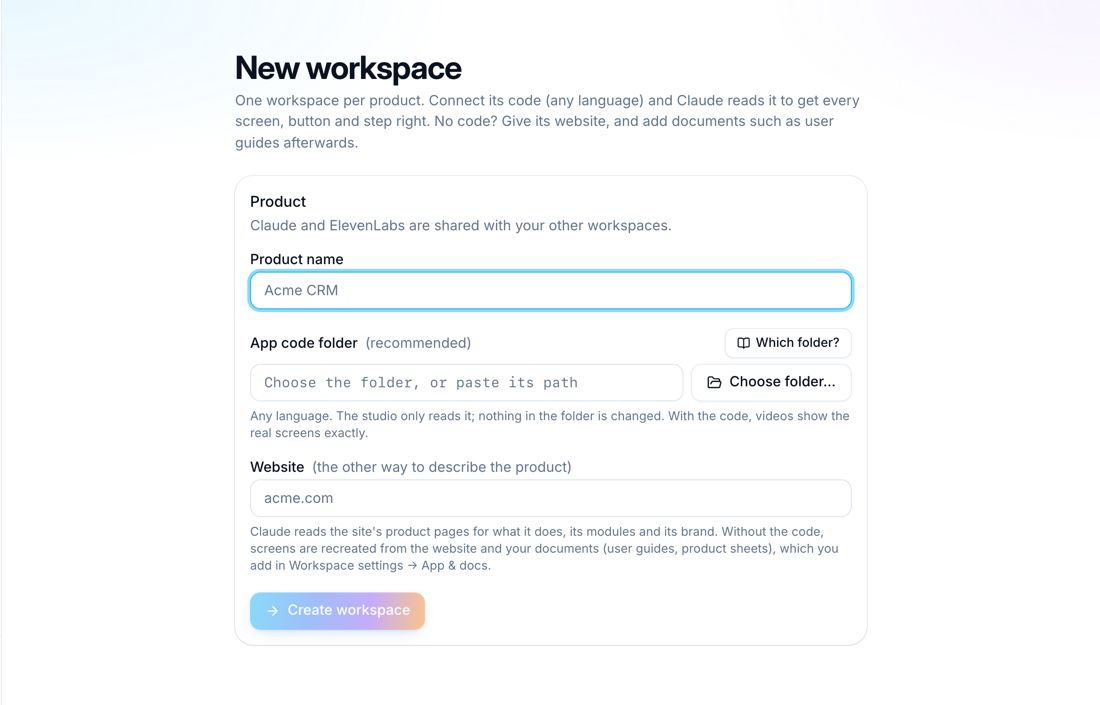
For a monorepo, choose the folder with the app's frontend. DemoVexa detects the stack and the app's navigation, which it later uses to name screens correctly.
What happens from brief to finished video?
Brief
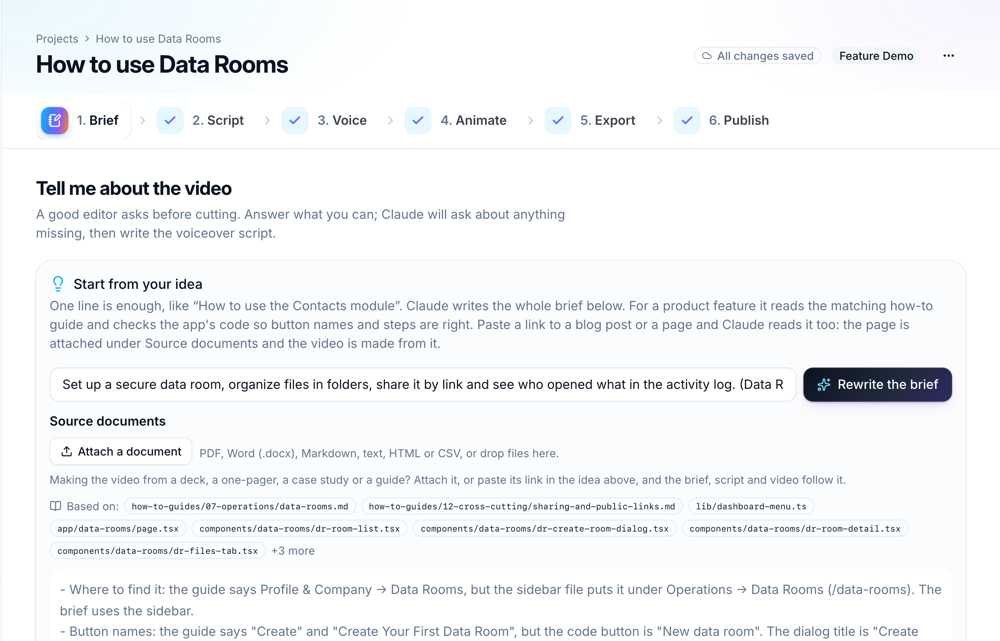
Type one line, such as "Show how a new user creates their first project". DemoVexa expands it into a brief with platform, formats and the files it plans to read. The screenshots below show DemoVexa building a video for Nautis, our sample product.
Script and voice
Review the voiceover lines and captions, then choose an AI voice, record your own, or go captions only.
Animate
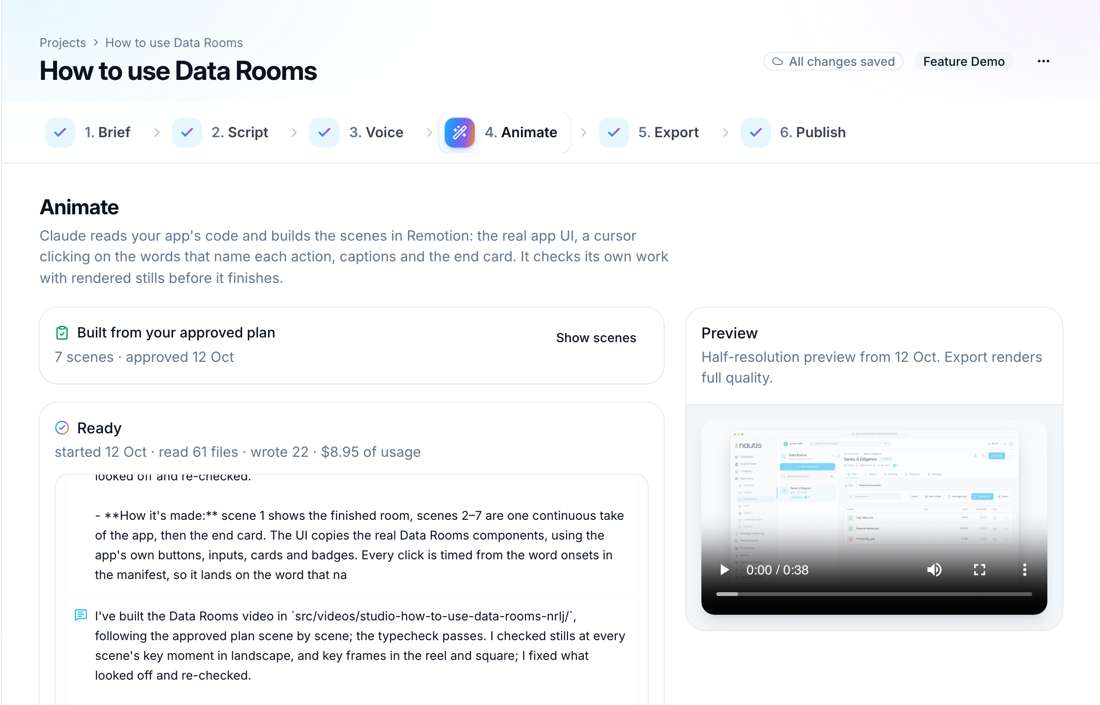
DemoVexa plans the scenes from the script and the code and builds them. You approve the plan, then watch a preview. Changes are asked for in plain words, for example "slow down scene 3".
Export
Render 1080p MP4s in 16:9, 9:16 and 1:1, each with its own layout, plus SRT and VTT caption files.
What should I check before sharing it?
Watch the full video once with sound off. Check that captions match the screens, that sample data looks realistic and contains no real customer names, and that the end card points to the right page. Rebuilding after a fix is a re-render, not a re-record.
Is a Next.js or other framework different?
The steps are the same for any language or framework. We wrote a separate tutorial for Next.js apps with framework-specific tips. For developer tools without much UI, see how to make a demo for a developer SDK. The full pipeline is described on AI product demo video from code.
Frequently asked questions
Can I make a demo video from a private GitHub repo?
Yes. Clone it with your own access and point a DemoVexa workspace at the folder. DemoVexa reads it locally and sends relevant parts only to your own AI provider account.
Does DemoVexa need the app to be running?
No. It reads the code, docs and navigation and rebuilds the screens as animated components, so you do not need a running instance or test account.
What languages and frameworks work?
Any language or framework. DemoVexa detects the stack when you create the workspace.
What if my repo has no UI?
You can still make a video, but it will show code, terminals or docs rather than app screens. Our developer SDK demo post covers that case.
Keep reading
All posts
Can AI Make a Demo Video Without Screen Recording?
How AI builds a product demo video from code instead of a screen recording: what it reads, how screens are rebuilt, and the limits to know about.
Baltej Singh 2 min read
Synthesia Alternatives When You Need Real Product UI
Avatar videos and product UI videos solve different problems. How to tell which one your demo needs, with Synthesia facts checked on 25 October 2026.
Baltej Singh 3 min read
Loom Alternatives for Polished Product Demos in 2026
Loom wins for quick, personal screen clips. For a public product demo you will reuse and update, an avatar tool or a build-from-code tool may fit better.
Baltej Singh 4 min read