

How to Export a Product Demo Video on Green Screen or Transparent
Export a green screen product demo video as an MP4, or a transparent MOV or WebM, then place your app's screens over any footage in your editor.
 Baltej Singh · Founder, DemoVexa 5 min read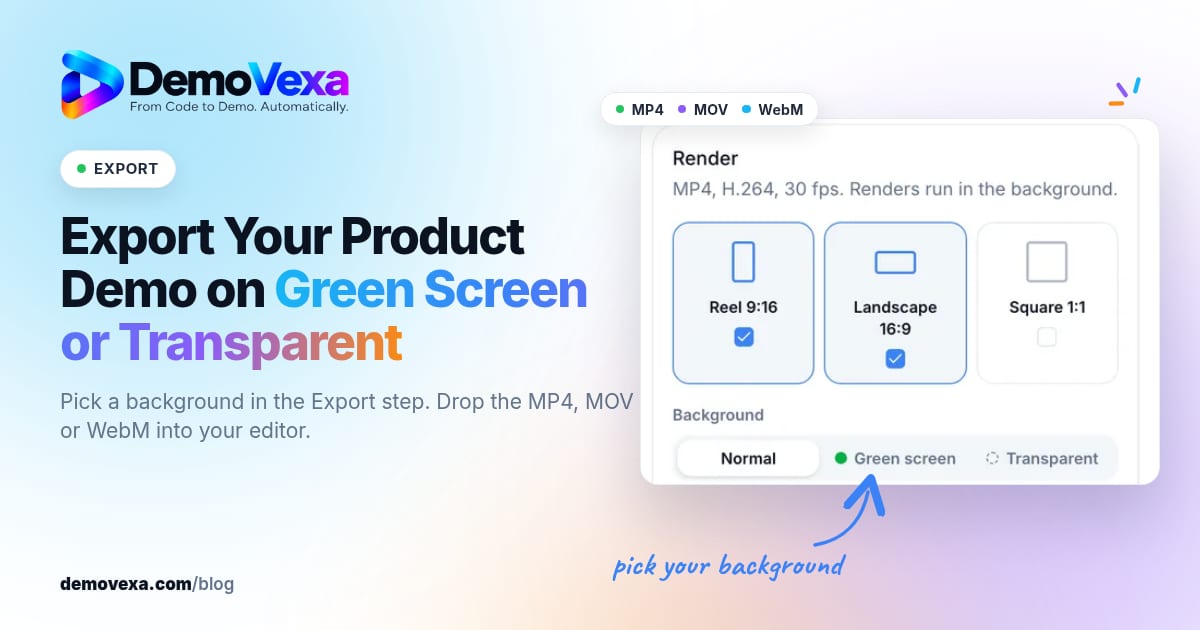
To export a green screen product demo video in DemoVexa, pick Green screen as the background in the Export step and render an MP4 with a chroma-green background. If you would rather skip keying, pick Transparent and get a MOV or a WebM with an alpha channel. Your app's screens, captions and cursor stay in the video, and only the scene background is removed.
Why export a product demo without its background?
You remove the background when the demo is one layer in a bigger edit. Common cases are a founder talking to camera with the app floating beside them, a launch video cut together in Premiere or DaVinci Resolve, a conference reel, or a web page where the product sits on top of your own design.
In all of these, a normal render forces your editor to work around a fixed backdrop. A render without one lets them place the app wherever the shot needs it, at any size, over any footage.
If you plan to post the video as it is, you don't need any of this. The Normal background is the video as designed, and it plays anywhere.
Green screen, transparent MOV or WebM: which file should you pick?
Pick by the editor or page the file is going into. This table comes straight from the render docs:
| Background | File | Use it in | Watch out for |
|---|---|---|---|
| Normal | MP4 (H.264) | Anywhere | The background is part of the video |
| Green screen | MP4 (H.264) with a chroma-green background | CapCut, Canva, iMovie, Premiere, Final Cut, DaVinci Resolve | You key out the green in your editor |
| Transparent, MOV | MOV (ProRes 4444) with an alpha channel | Premiere, Final Cut, DaVinci Resolve | Large files |
| Transparent, WebM | WebM (VP9) with an alpha channel | Web pages, Chrome, CapCut, DaVinci Resolve | Safari and Final Cut can't read its transparency |
My rule of thumb:
- If you edit in Premiere, Final Cut or Resolve and have the disk space, use the transparent MOV. There is no keying step, and soft shadows stay intact.
- If you edit in CapCut, Canva or iMovie, or you are sending the file to someone and don't know their setup, use the green screen MP4. It is the format almost every editor understands.
- If the video goes on a web page, use the WebM, and check it in Safari before you ship. Mozilla's web video codec guide also notes that Safari does not support alpha transparency in these WebM codecs, so plan what Safari visitors will see.
How do you set up a green screen export in DemoVexa?
Decide early, render late. The background is a choice in two places, and setting it in the first one saves you a rebuild.
Choose the background in the Brief
In the Brief step, open Format and feel and set Background for export to Green screen or Transparent. The Brief docs explain why this matters: the first build is checked for it, and the Export step preselects it. The Normal version is always available too, so you don't lose anything by choosing it.
Build the video as usual
Write and edit the Script, generate the voiceover in Voice, and build the animation in Animate. Nothing about the green screen choice changes these steps. Before you move on, make sure the animation was built against the current voiceover. If the voice changed after the build, re-sync in Animate, or the clicks won't match the words. Our post on matching voiceover timing to product actions goes deeper on this.
Render from the Export step
- Open the Export step and look at the Ready to render checklist. Fix anything it flags.
- Preview each format you plan to use: Reel 9:16, Landscape 16:9 or Square 1:1.
- In the Render card, tick the formats and pick the Background.
- Click Render video, or Render N videos if you ticked more than one.
Renders run in the background on your computer, so you can keep working or close the window. The finished files show up in the list with names like Landscape · Green screen, and the download button says MP4 or MOV. Each render counts towards your plan's monthly allowance, which you can check on the pricing page.
What if the video was built before green screen support?
Older videos may keep parts of their background when you render them on green or transparent. When you pick Green screen or Transparent for one of those, click Ask Claude to prepare it. Claude updates the video so its backgrounds can be removed, and the normal version looks the same as before.
How do you use the file in your video editor?
Put the demo on the track above your footage, then remove or keep the background depending on the file.
Green screen MP4
Add your editor's chroma-key or green screen effect to the demo clip and pick the green as the key colour. Check the edges of the app window and the cursor against your footage, since that is where keying problems show first.
Transparent MOV
Drop it on the upper track and you are done. The background is already gone, so there is nothing to key. Expect big files, and plan for that when you share the project with an editor.
Transparent WebM
Use it in a web page, Chrome, CapCut or DaVinci Resolve. It is much smaller than the MOV, which is why it suits the web. Don't use it in Final Cut, where the transparency won't come through.
What should you check before handing the file over?
A few minutes here saves a round of revisions.
- Format fit. A layout that works in landscape can feel cramped in a vertical reel. Watch every format you render. Our guide to choosing between 16:9, 9:16 and 1:1 helps here.
- Audio. Voice and music are included in green screen and transparent renders. If the editor is adding their own music, tell them so they can balance the two.
- Captions. On-screen captions stay in the render. If the platform also wants a subtitle file, download SRT or VTT from the Subtitles card under Render.
- File size. If the MOV is too big to send, ask whether the green screen MP4 will do.
If you want to try this on your own product, download DemoVexa and set the background in your first brief.
Frequently asked questions
Can I export a product demo video with a transparent background?
Yes, for animated videos in DemoVexa. Pick Transparent in the Export step and render either a MOV (ProRes 4444) or a WebM (VP9), both with an alpha channel. The app's screens, captions and cursor stay, and only the scene background is removed.
What is the difference between a green screen and a transparent export?
A green screen export is a normal MP4 with a solid chroma-green background that you remove with a chroma-key effect in your editor. A transparent export has no background at all, stored in an alpha channel, so there is nothing to key. Transparent MOV files keep soft shadows but are large.
Why does my older video still show parts of its background?
Videos built before green screen support may keep parts of their background. In the Export step, pick Green screen or Transparent and click Ask Claude to prepare it. Claude updates the video so the backgrounds can be removed without changing the normal version.
Does the green screen video include the voiceover?
Yes. Green screen and transparent renders include the voice and the music, just like a normal render. If you are adding your own soundtrack in an editor, balance it against the voiceover.
Can I get a green screen version of an Event Recap?
No. Event Recaps don't have the green screen or transparent option, because their photos and clips fill the frame. The option is available for animated videos.
Keep reading
All posts
A Brand Kit for Product Videos: Set It Once per Product
Set logo, colours, fonts and CTA once per product so every demo video stays on brand without redesigning each project.
Baltej Singh 1 min read
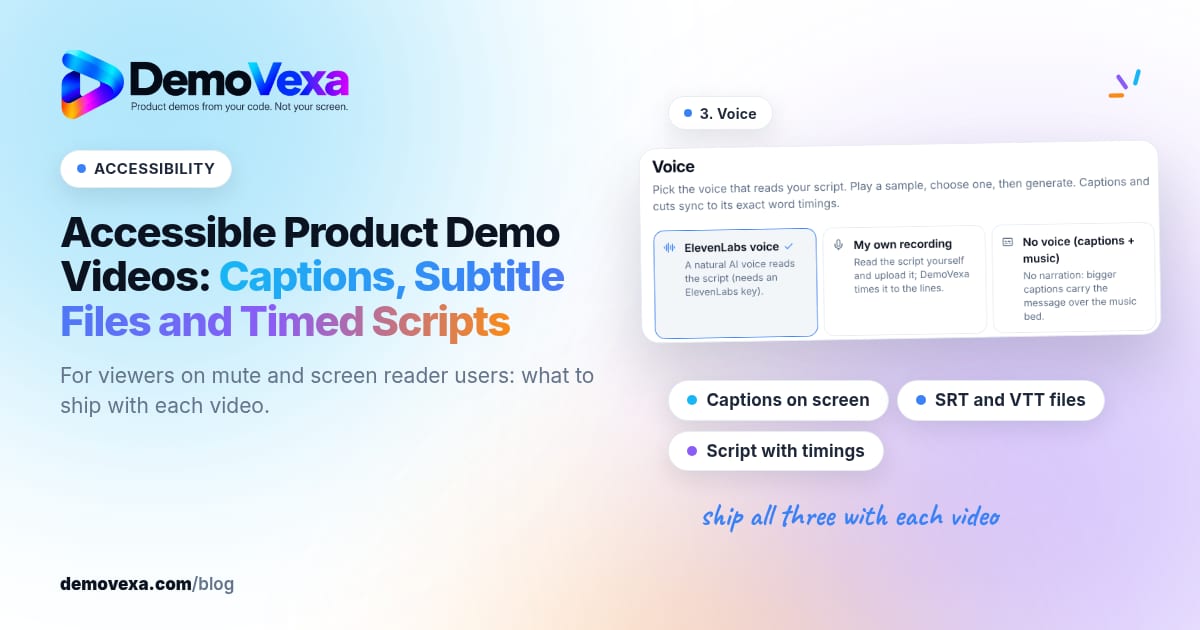
Accessible Product Demo Videos: Captions, Subtitle Files and Timed Scripts
Captions on screen, subtitle files and a script with timings help people who watch without sound or use a screen reader.
Baltej Singh 1 min read
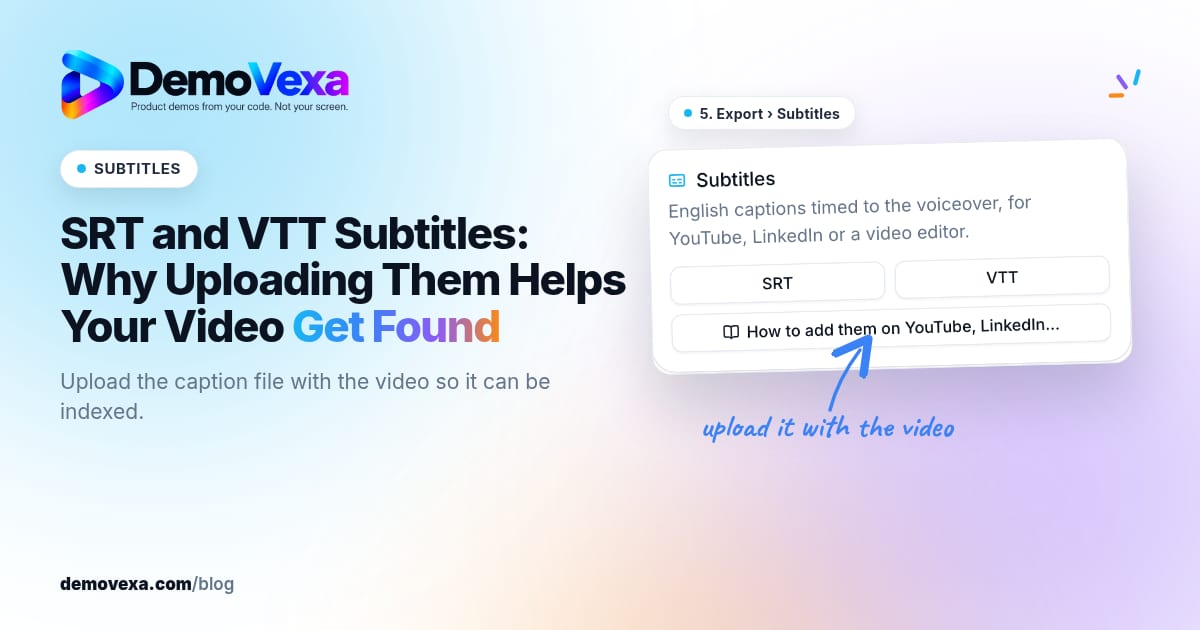
SRT and VTT Subtitles: Why Uploading Them Helps Your Video Get Found
Upload the SRT or VTT with the video. Platforms index the captions, and people watching without sound can still follow every click.
Baltej Singh 2 min read