

SRT and VTT Subtitles: Why Uploading Them Helps Your Video Get Found
Upload SRT or VTT subtitles with your product demo so YouTube and LinkedIn can index the words, and viewers can watch without sound.
 Baltej Singh · Founder, DemoVexa 2 min read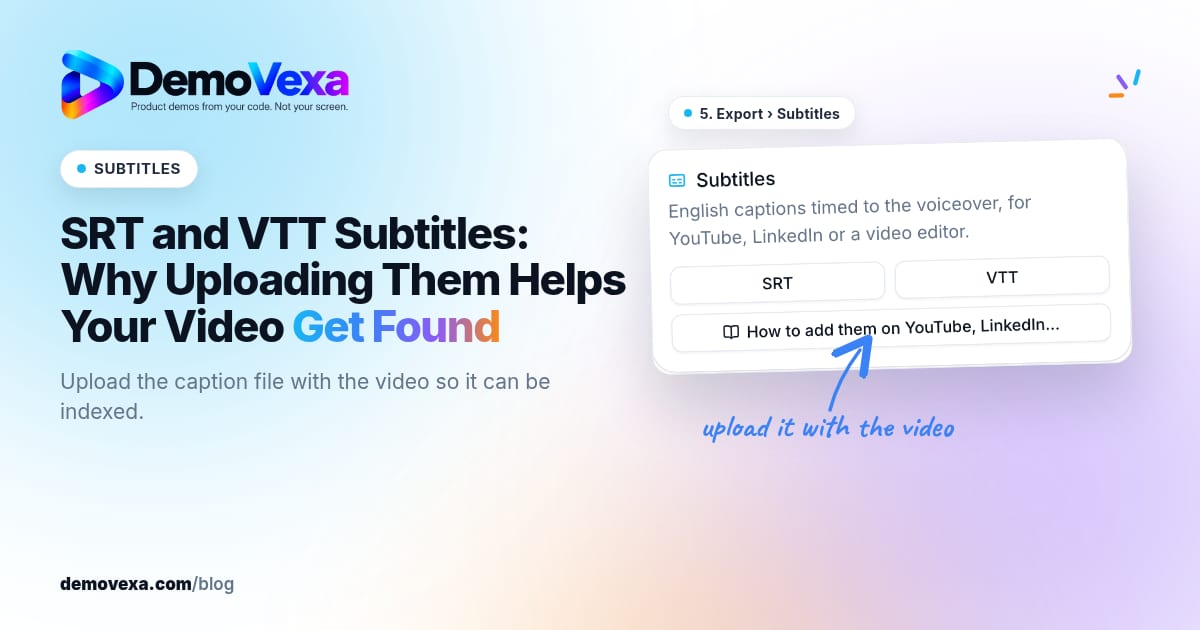
Uploading an SRT or VTT subtitle file with your product demo helps the video get found because YouTube and LinkedIn can index the spoken words, and it helps people who watch without sound. Auto-captions help, but they mis-hear product names. A file you control keeps feature labels correct.
Why a separate subtitle file beats auto-captions alone
Auto-captions are a safety net. They struggle with invented product words, API names and fast UI labels. DemoVexa's why DemoVexa page notes that uploading the SRT or VTT with the video helps indexing and accessibility. YouTube's own help documents uploading subtitle files; treat their UI labels as the source for where to click in Studio.
On-screen captions help silent autoplay. The sidecar SRT/VTT helps search indexing and downloadable transcripts. For writing captions well, see software demo captions. This post focuses on why uploading the file matters for discovery.
How DemoVexa produces the files
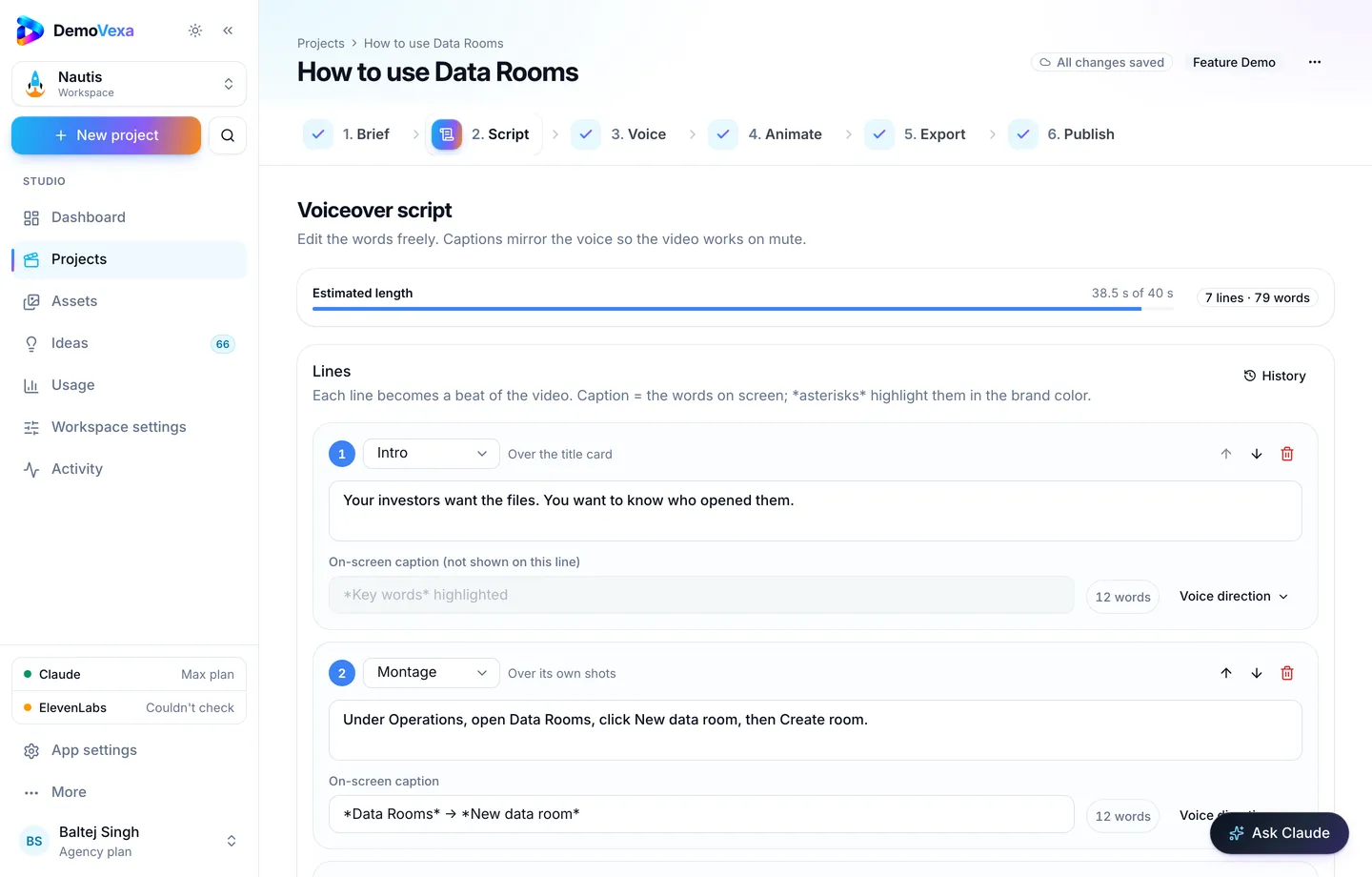
Edit voiceover lines and captions in the Script step so the spoken line and the on-screen text agree (script docs).
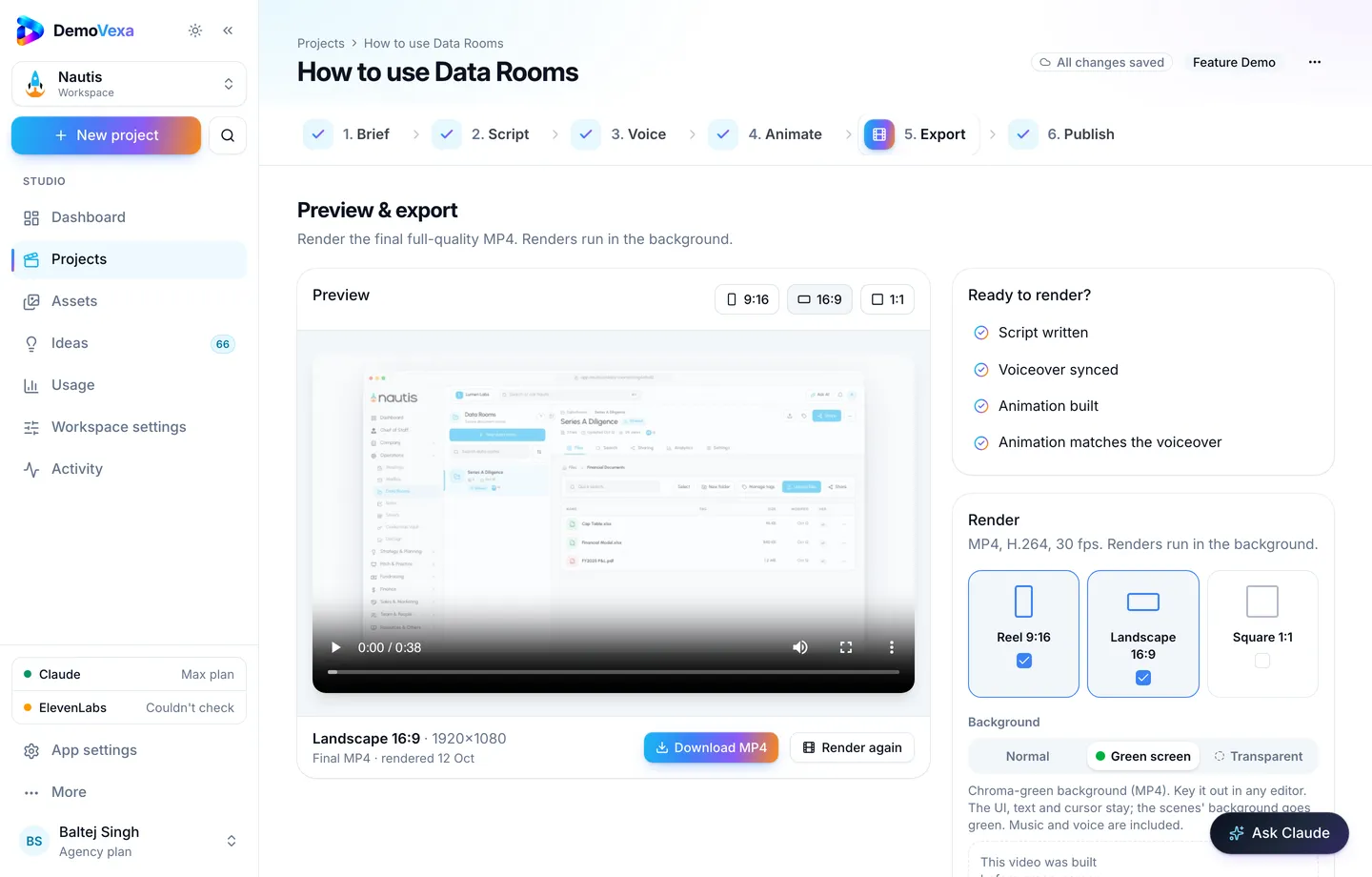
Render in Export. Download the MP4 and the subtitle file together (render docs).
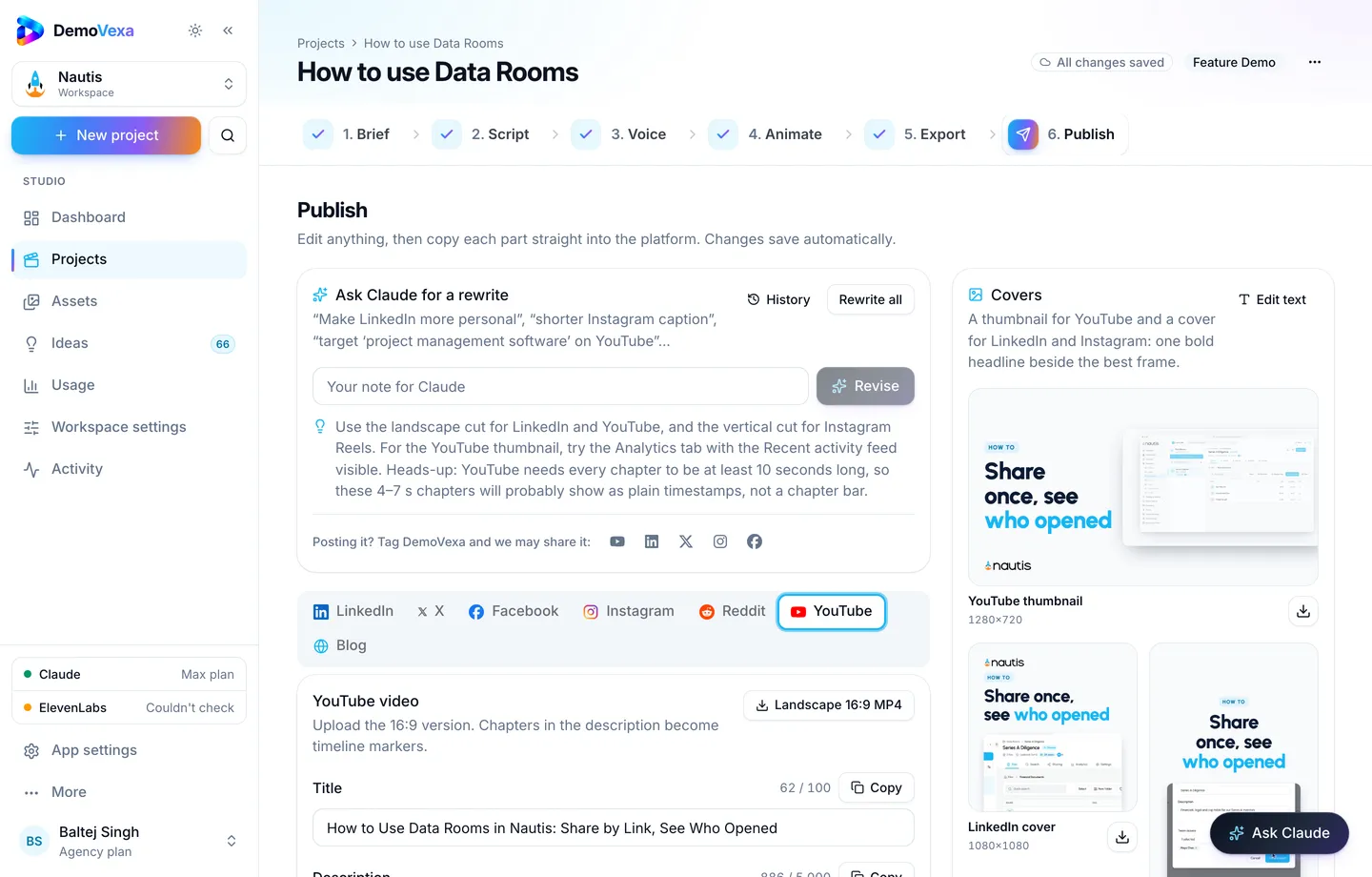
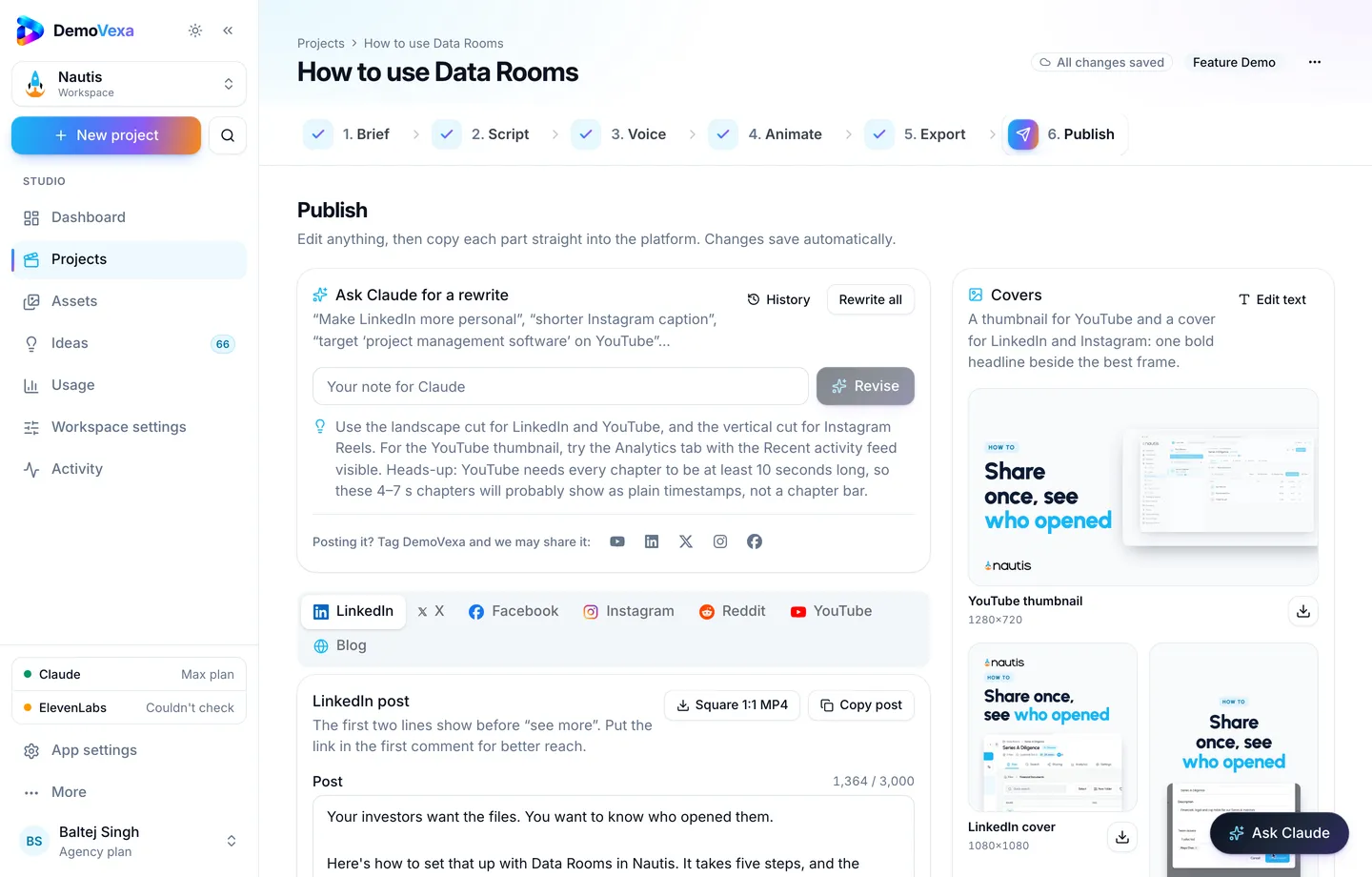
When you publish to YouTube, copy the drafted title and description from the YouTube tab, then attach the subtitle file in Studio.
Upload checklist
- Confirm the SRT/VTT uses the exact product names from the UI.
- Upload the video, then upload subtitles for the default language.
- Spot-check three timestamps against the picture.
- For multilingual distribution, upload one file per language track you actually recorded (multilingual demos).
- Keep the same file linked from your blog companion when you embed the video (Publish).
Common failures
- Uploading an old SRT after you re-recorded the voice
- Leaving English auto-captions on a non-English voiceover
- Hard-coding burned captions in a language while the SRT says something else
- Skipping captions on Shorts that still need accessibility
Frequently asked questions
SRT or VTT?
Both are widely supported. Use what your editor and platform prefer. Consistency across a channel matters more than the extension debate.
Do burned-in captions replace an SRT?
No. Burned-in captions are pixels. An SRT is text platforms and assistive tools can parse.
Will subtitles alone rank a weak video?
No. They improve indexing and access. You still need a clear how-to, a honest title and a page or channel that earns trust. See [YouTube SEO for product videos](https://demovexa.com/why-demovexa).
Can DemoVexa write captions automatically?
Captions come from the script workflow so they match the voiceover you approved. Edit them where the product names must be exact.
What about silent demos?
Silent or muted-first cuts still need captions. See [silent product demo video](https://demovexa.com/blog/silent-product-demo-video).
How often should we re-upload?
Whenever the voiceover or on-screen labels change. Replace the subtitle file in the same session you replace the MP4.
Keep reading
All posts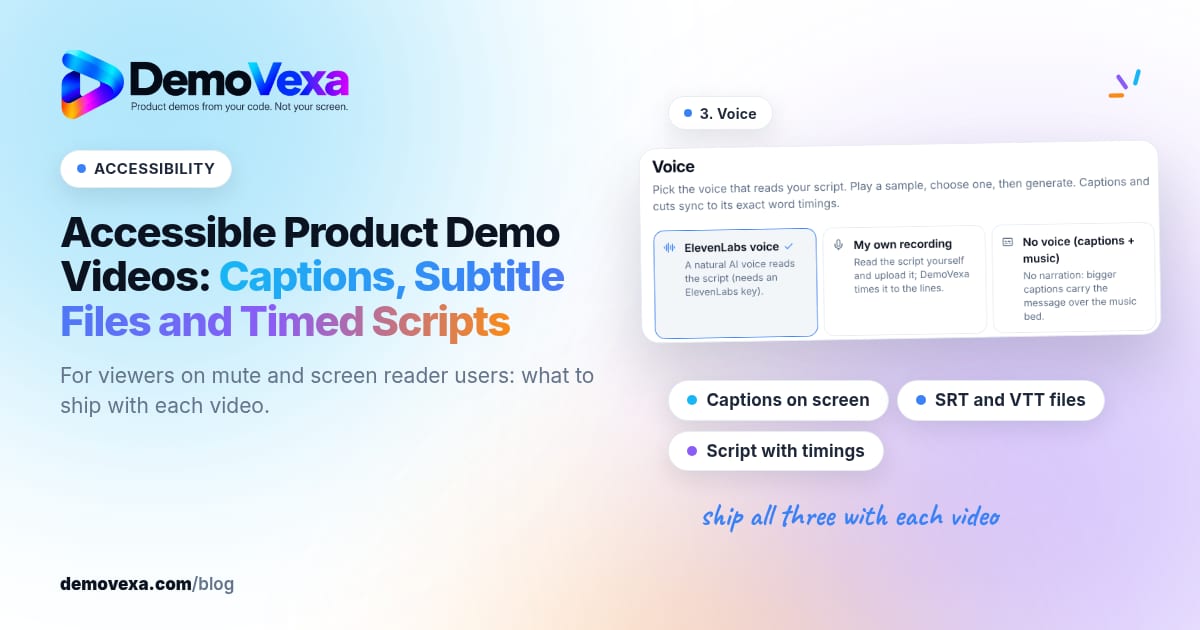
Accessible Product Demo Videos: Captions, Subtitle Files and Timed Scripts
Captions on screen, subtitle files and a script with timings help people who watch without sound or use a screen reader.
Baltej Singh 1 min read
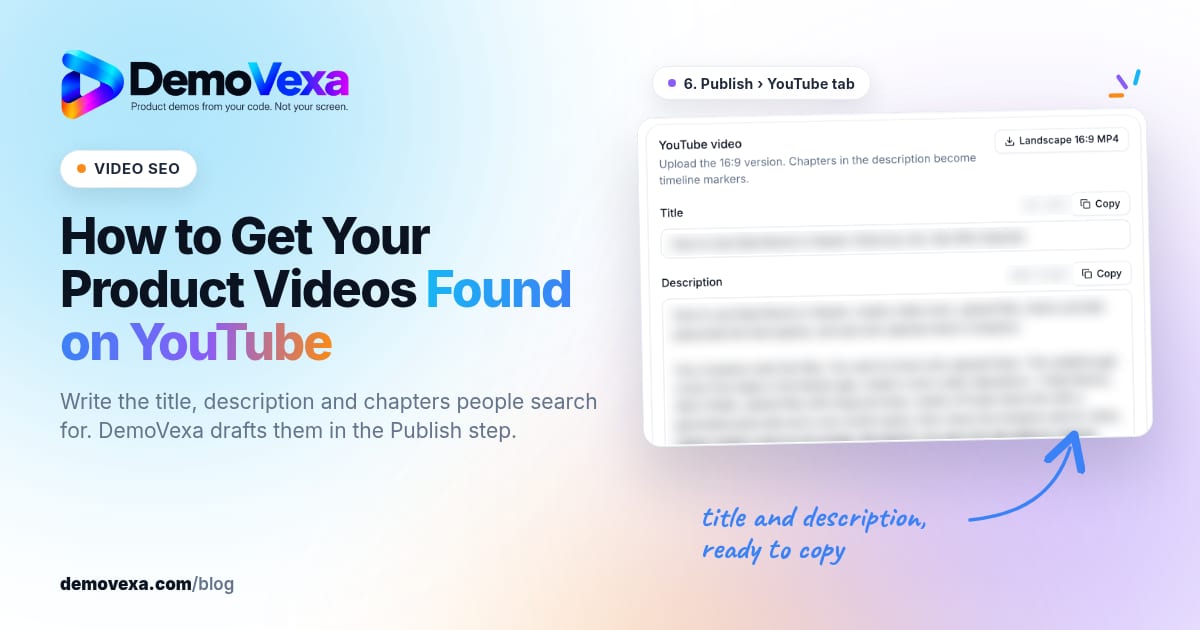
How to Get Your Product Videos Found on YouTube
Treat YouTube like a search engine. One how-to video per feature, with a title, description, tags and subtitles written for the query people actually type.
Baltej Singh 6 min read
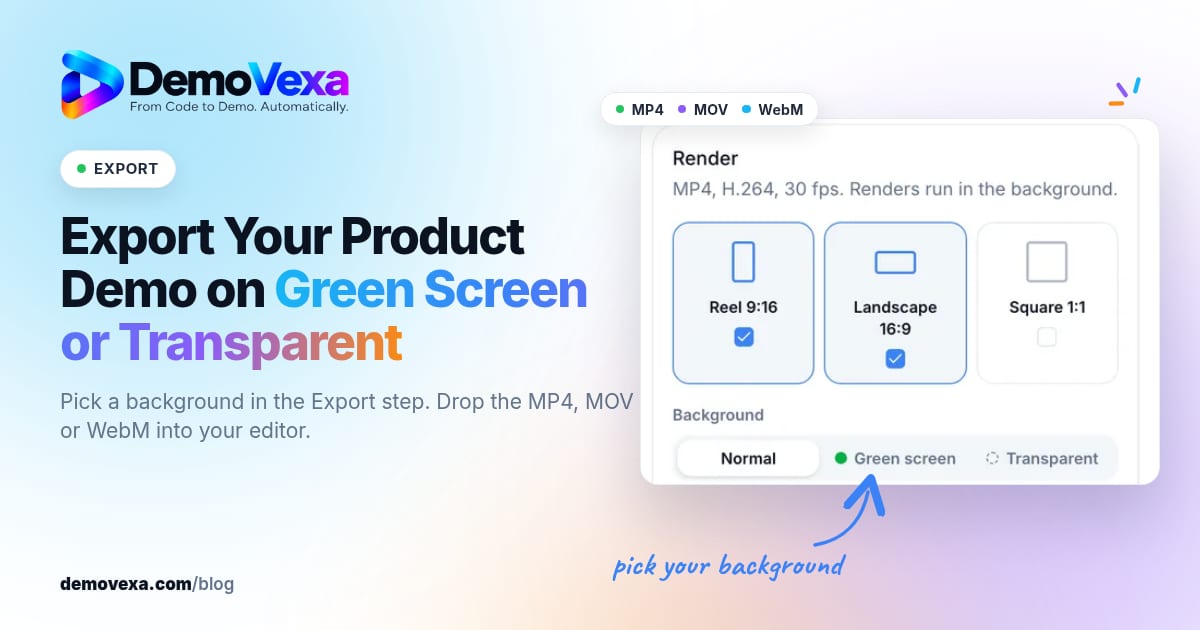
How to Export a Product Demo Video on Green Screen or Transparent
Pick a background in the Export step and get a chroma-green MP4, a ProRes 4444 MOV or a WebM with transparency, ready to layer over your own footage.
Baltej Singh 5 min read