

How to Make a Product Demo Video From a Next.js App
Point DemoVexa at your Next.js code folder and it reads the routes, components and docs, then builds the demo video from the code. Here are the steps.
 Baltej Singh · Founder, DemoVexa 3 min read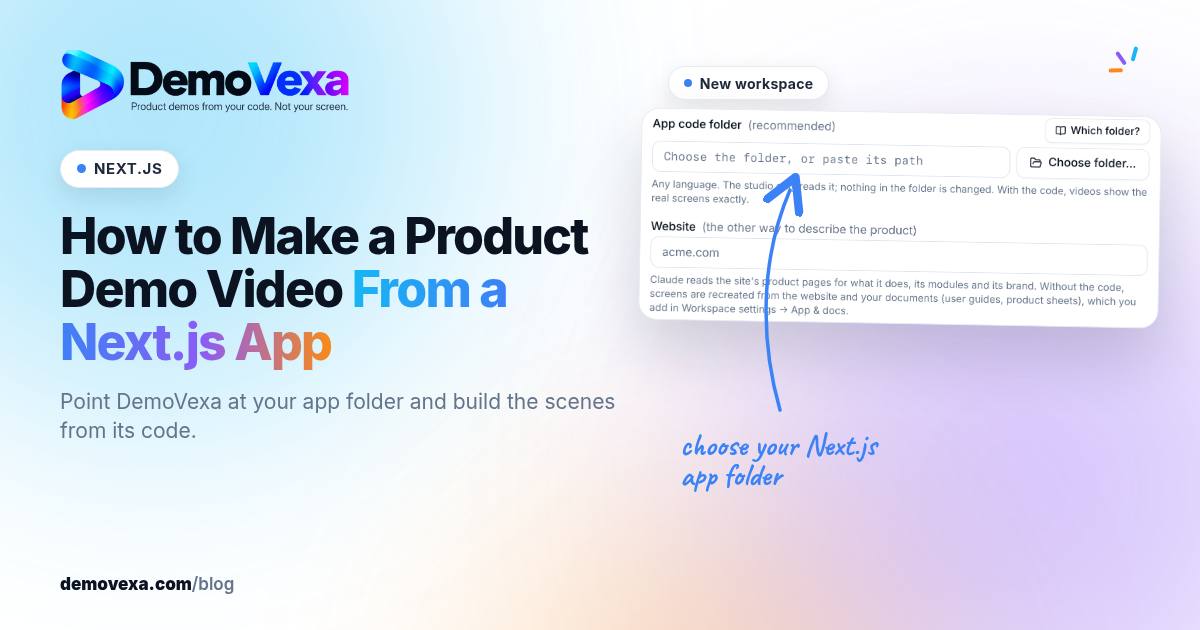
To make a product demo video from a Next.js app with DemoVexa, create a workspace, point it at your app's code folder, let it analyze the project, then write a one-line brief and build. DemoVexa reads your routes, components and docs, writes the script, and recreates your screens in React with Remotion, so the video shows your real UI without a screen recording.
This post covers only what DemoVexa's site and docs describe. The screenshots show DemoVexa making videos for a sample product, Nautis, which happens to be a Next.js app.
What do you need before you start?
The DemoVexa desktop app (macOS, Windows or Linux), a connected AI provider such as Claude, and your Next.js project on the same computer. A voice provider like ElevenLabs is optional if you want an AI voiceover. The install and setup docs cover connecting each one.
Step 1: Create a workspace for the app
One workspace per product. Give it a name and choose the app code folder, which is your Next.js project root. You can add the product website too.
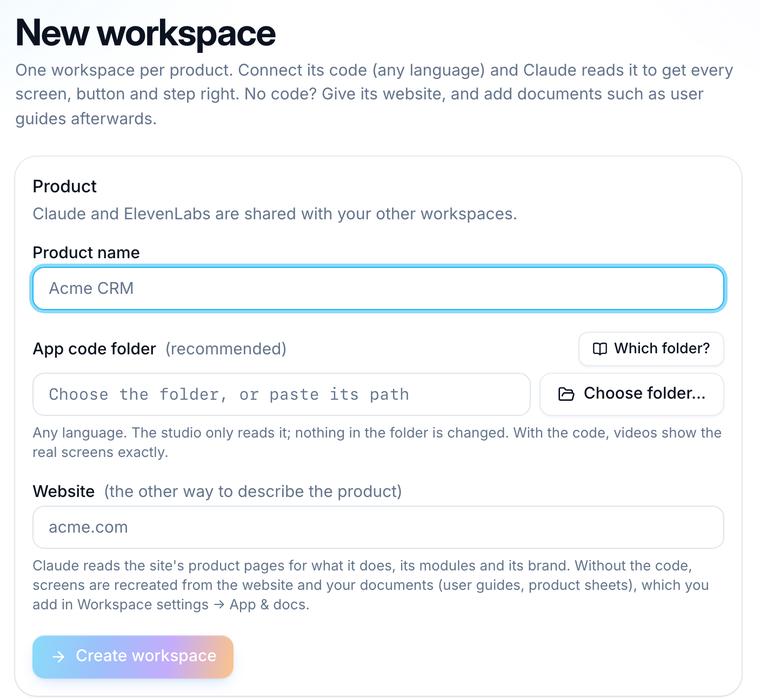
DemoVexa only reads the folder. Nothing in your repository is changed, and the code stays on your machine.
Step 2: Check what DemoVexa detected
After you run "Analyze with Claude", the App and docs tab shows the code folder and the stack it found. For the sample product, it lists TypeScript, Next.js, React, Tailwind and shadcn/Radix, plus a docs folder of how-to guides.
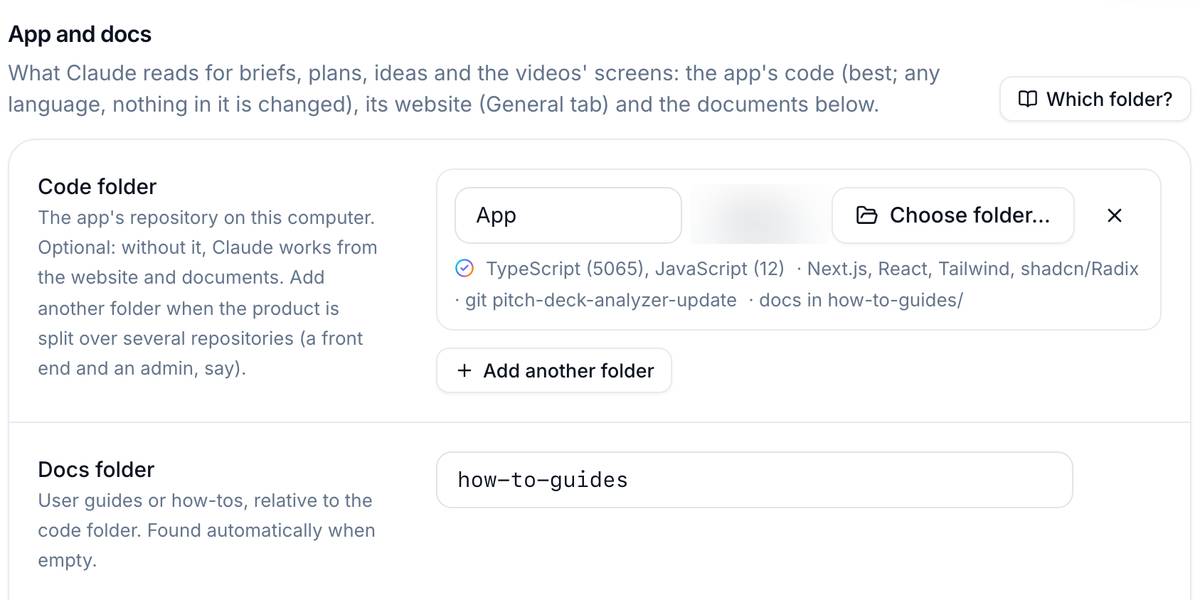
If your docs live in a folder like docs/ or how-to-guides/, set it here. Briefs and scripts use them to get button names and steps right. If your product is split across repos, say a marketing site and the app, add another folder.
Then check the modules
The Modules tab lists the parts of your product the videos will be about, grouped the way your navigation groups them. For a Next.js app these usually match your main routes. Rename or regroup anything that reads oddly, because these names show up in ideas and briefs.
Step 3: Write the brief
Type one line, for example "show how to invite a teammate." DemoVexa reads the matching guide and the code for that part of the app, then drafts the brief: audience, formats, tone, length and call to action. Read it and answer any questions before moving on.
Step 4: Script, voice and build
The Script step turns the brief into voiceover lines with on-screen captions. Choose a voice or record your own. Then the Animate step plans the scenes; once you approve the plan, a build agent recreates your UI in React and animates it with Remotion, timed to the narration, using your workspace's brand kit.
Step 5: Export the formats you need
Export renders 16:9, 9:16 and 1:1 MP4s, with covers and ready-to-post copy for each platform. The features page lists what comes with each export.
What happens when the Next.js app changes?
You rebuild the video from the latest code rather than re-recording it. For a component library or SDK rather than an app, our post on making a demo for a developer SDK is a closer fit. And if you want to script it from the terminal, see making a product demo video from the command line.
Frequently asked questions
Does DemoVexa upload my Next.js repository?
No. DemoVexa is a desktop app and the code folder stays on your computer. The parts a video needs go directly from your machine to the AI provider you connect.
Does my Next.js app need to be running?
DemoVexa reads the code folder, docs and modules rather than recording a running app, and the build agent recreates the screens in React. Check the docs for any project-specific setup.
Can I use it with the App Router and the Pages Router?
DemoVexa reads code folders in any language, and its docs do not limit it to one router. Its modules come from your navigation, so check the Modules tab after the first analysis either way.
What if my front end and admin are separate repos?
Add another code folder to the same workspace. The App and docs tab supports several folders for a product that is split across repositories.
Keep reading
All posts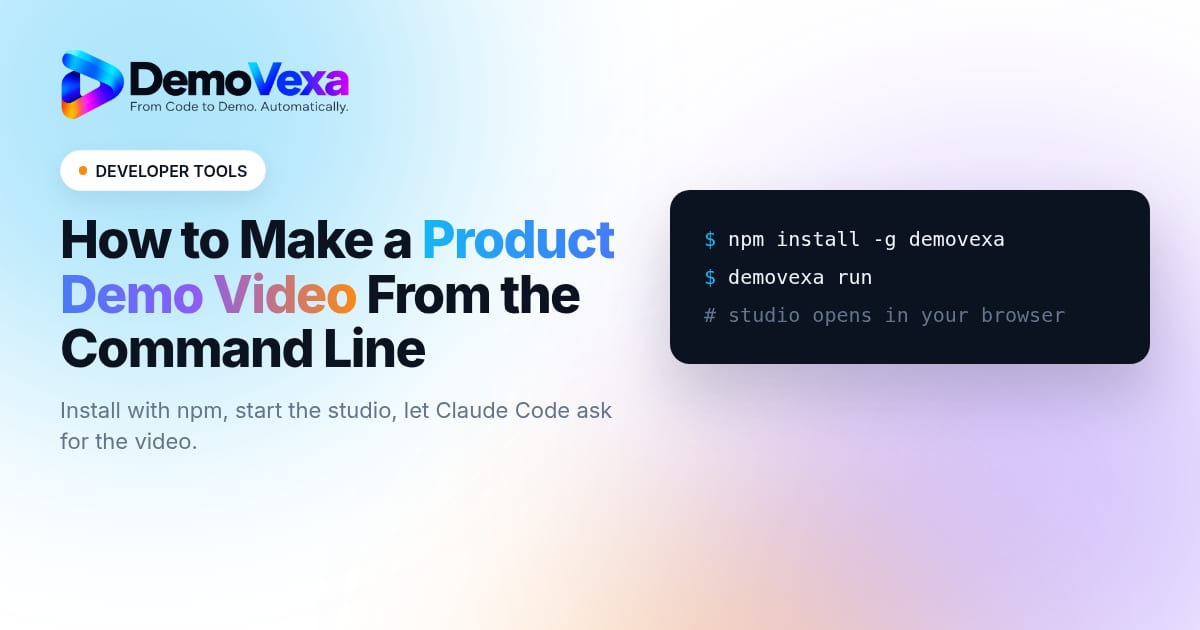
How to Make a Product Demo Video From the Command Line
You can install and run DemoVexa from npm, then ask Claude Code for a launch video right after you ship. Here is what the terminal does and what it doesn't.
Baltej Singh 5 min read
How to Make a Demo for a Developer SDK
A practical guide to developer SDK demo for sdk maintainers, with scene planning, script checks and publishing advice.
Baltej Singh 5 min read
Free Product Demo Video Script Template, With Examples
Copy this five-beat demo video script template, with a word budget per beat and two worked examples you can adapt to your own product.
Baltej Singh 2 min read