

App Store Preview Videos and Google Play Promo Clips
Ship App Store previews at Apple's accepted resolutions and a short Google Play promo on YouTube, with a rebuild path when the mobile UI changes.
 Baltej Singh · Founder, DemoVexa 2 min read
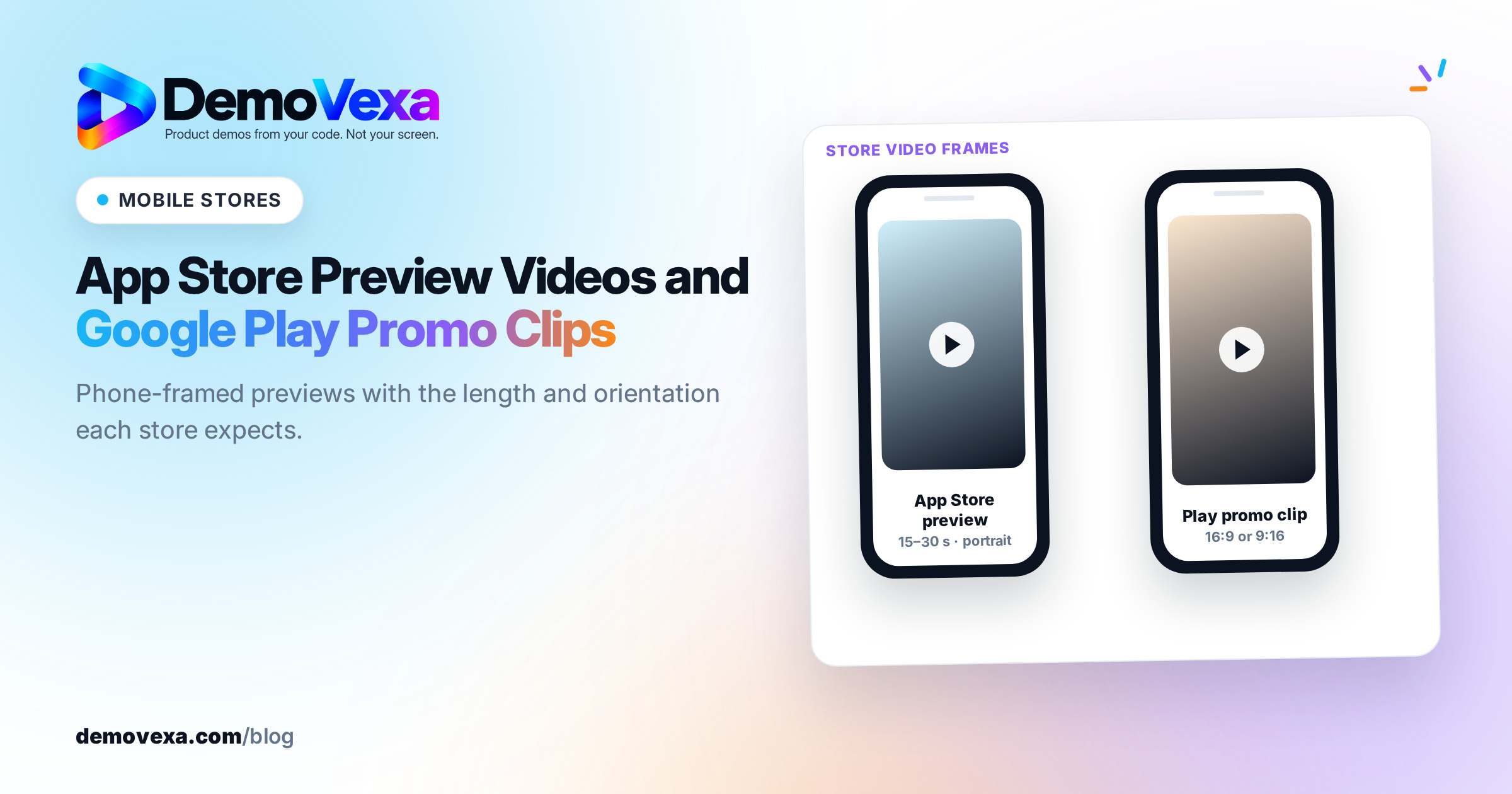
App Store app previews are 15 to 30 second uploaded videos at Apple's accepted resolutions (commonly 886 x 1920 portrait for modern iPhones). Google Play store listings take a YouTube URL as the preview video, with ads off and a public or unlisted embeddable link. Build both from one mobile happy path so you are not maintaining two unrelated recordings.
What are Apple's App Store preview rules?
Apple's App Store Connect documentation (checked 1 Nov 2026) lists these requirements for app previews:
- Length: 15 seconds minimum, 30 seconds maximum
- Max file size: 500 MB
- Formats: .mov, .m4v, .mp4 (H.264); ProRes 422 HQ also listed for .mov
- Max frame rate: 30 fps
- Up to three previews per supported device size and language
For current iPhones with Face ID or Dynamic Island class displays, App Store Connect accepts 886 x 1920 (portrait) and 1920 x 886 (landscape) as the listed accepted resolutions, and scales across related sizes when you supply the highest required set. Always confirm the live App Store Connect preview specifications before a submission, because device classes get new rows over time.
What does Google Play want for a preview video?
Google Play's store listing preview video field takes a YouTube URL (not a playlist, channel or timecode link). Play Console help (checked 1 Nov 2026) expects the video to be public or unlisted, embeddable, not age-restricted, and without ads or monetization claims that would show someone else's ad on the Play listing.
Only the early part of the video may autoplay muted (Play documents up to about 30 seconds depending on surface). Google recommends showing the core in-app experience early, within about the first 10 seconds, and keeping most of the runtime on real UI rather than pre-rendered promo.
How should you structure the shared mobile story?
- Open on the first useful screen, not a five-second logo hold.
- Complete one job: sign in with sample data, create the object, reach success.
- Keep text large enough to read on a phone store page.
- Export a 15 to 30 second cut for Apple at an accepted resolution.
- Publish a YouTube cut for Play (often the same story, sometimes a few seconds longer if the first 30 seconds still carry the point).
How do you keep store videos aligned with the shipped app?
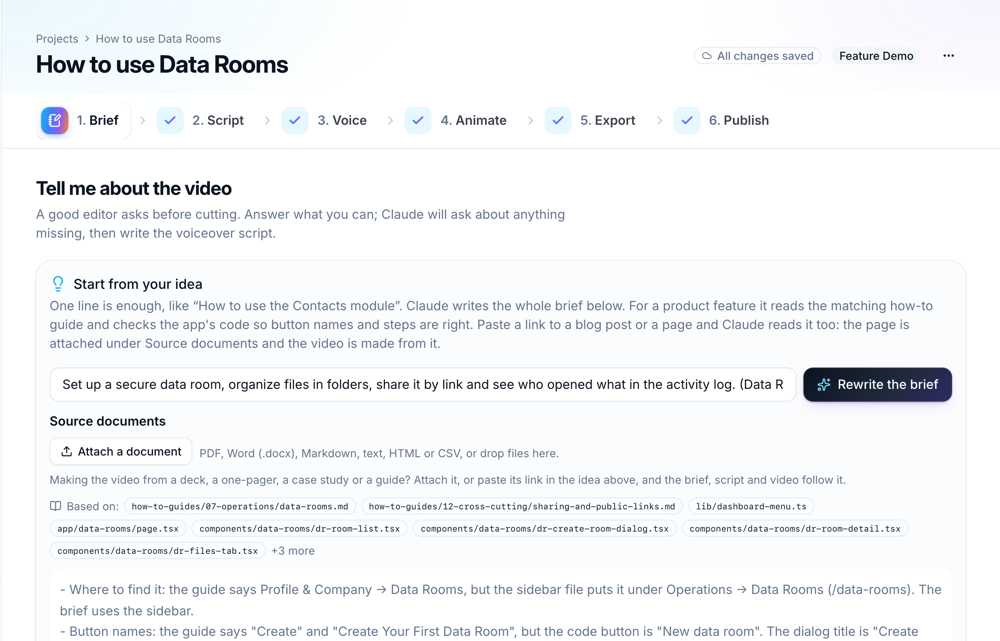
Store videos that show last season's onboarding create support tickets. Tie preview refresh to the same release train as screenshots. A code-sourced rebuild of the mobile UI is easier to refresh than a device recording you dread redoing; DemoVexa runs on your computer and rebuilds demos from app code (AI product demo from code, Features). The same principles apply on React Native, Flutter or any mobile stack you ship.
Frequently asked questions
Do I need a different preview for every iPhone size?
Apple scales previews across related sizes when you provide the accepted high-resolution set. Provide size-specific files only when the UI truly differs. Read the current App Store Connect table for your app's device families.
Can the Play promo be vertical?
Yes. Play does not publish a single required pixel size because the asset is a YouTube video. Avoid letterboxing. Make sure the first 30 seconds still make sense muted.
Should website demos match store previews?
Keep the same happy path and sample data. The website cut can be longer; the store cuts must respect Apple's 30 second cap and Play's early-seconds autoplay reality.
Keep reading
All posts
Shopify App Demo Videos That Match App Store Specs
A Shopify app demo should show the merchant admin, the install or enable step, and one job the app finishes, in a short cut that stays true after each release.
Baltej Singh 2 min read
How to Put a Product Demo Video in a GitHub README
A short H.264 MP4 uploaded in the README editor is the cleanest way to show a product demo on GitHub. Here is how GIF, MP4 and YouTube each fit, and the size limits that apply.
Baltej Singh 4 min read
How to Make a Product Demo Video From a Next.js App
How to turn a Next.js app into a product demo video without screen recording: connect the code folder, check the modules, write the brief and build.
Baltej Singh 3 min read